🚀 Deployment Guide
This document describes how the CONDOR Calfire Inference system is deployed end-to-end on Azure using a single az deployment sub create command plus one manual approval step.
Architecture Overview
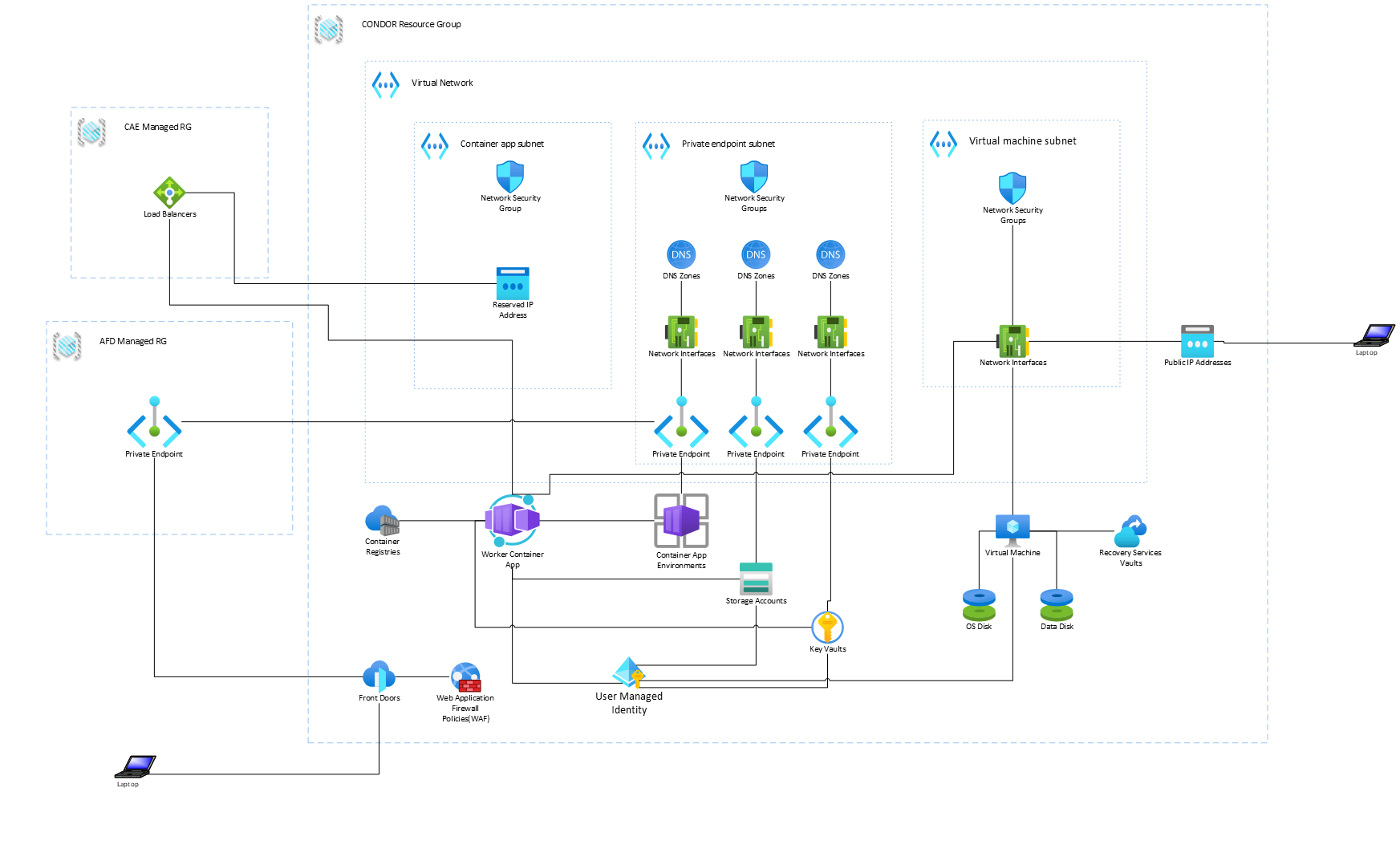
The deployment is a single Bicep orchestration that provisions all resources, builds the server Docker image in ACR, bootstraps the GPU VM with Docker Compose, and wires the dashboard Container App to Front Door — in one shot.
Prerequisites
| Requirement | Details |
|---|---|
| Azure CLI | az v2.60+ with Bicep CLI |
| Azure login | az login then az account set -s <subscription-id> |
| Subscription quota | GPU VM size (default Standard_NC48ads_A100_v4) in target region |
| Azure DevOps PAT | Read-scope PAT for repo clone (used by VM bootstrap and ACR build task) |
Step 1 — Configure Parameters
cd azure/infrastructure
cp parameters.example.bicepparam parameters.bicepparam
Edit parameters.bicepparam and replace every REPLACE_WITH_* placeholder with real values.
Security:
parameters.bicepparamis git-ignored. Never commit this file.
Secrets (must be set)
These parameters contain credentials and are marked @secure() in main.bicep:
| Parameter | Purpose |
|---|---|
vmUsername | VM admin username (also stored in Key Vault as vm-username) |
vmPassword | VM admin password (also stored in Key Vault as vm-password) |
bootstrapRepoPat | Azure DevOps PAT for git clone/fetch on VM and ACR build task |
POSTGRES_USER | PostgreSQL username (shared by DB, server, and client) |
POSTGRES_PASSWORD | PostgreSQL password (shared by DB, server, and client) |
REDIS_PASSWORD | Redis password |
SERVER_SESSION_USERNAME | Dashboard login username |
SERVER_SESSION_PASSWORD | Dashboard login password |
SERVER_SESSION_API_KEYS | JSON map of API key → service-user name |
SERVER_SESSION_CSRF_SECRET | HMAC signing secret for CSRF tokens |
CLIENT_ALERTCA_PRD_BASE | Alert California API base URL |
CLIENT_FIRECAMS_BASE | FireCams data API base URL |
CLIENT_FIRECAMS_PANORAMA_BASE | FireCams panorama API base URL |
CLIENT_FIRECAMS_API_KEY | FireCams API key |
CLIENT_FIRECAMS_PANORAMA_API_KEY | FireCams panorama API key |
CLIENT_FIRECAMS_CAMERAS | Comma-separated FireCams camera IDs |
CLIENT_ALERTCA_CAMERAS | Comma-separated Alert California camera IDs |
CLIENT_CAMERAS | Comma-separated default camera IDs |
Deployment Configuration
| Parameter | Default | Purpose |
|---|---|---|
ownerTag | — | Tag value for resource ownership |
location | swedencentral | Azure region for all resources |
resourceNamePrefix | ai4gl-condor | Prefix used to derive all resource names |
vmSize | Standard_NC48ads_A100_v4 | GPU VM SKU |
dataDiskSizeGB | 4096 | Data disk size |
bootstrapRepoBranch | main | Branch checked out on the VM |
bootstrapTimestamp | 1 | Increment to force VM re-bootstrap |
Runtime Environment Variables
The remaining parameters configure the server/.env, client/.env, db/.env, and redis/.env files written on the VM, plus the Container App environment. Their defaults in parameters.example.bicepparam are sensible starting points — review and adjust as needed.
Key patterns:
SERVER_*parameters map toserver/.env(prefix stripped → e.g.SERVER_POSTGRES_HOSTbecomesPOSTGRES_HOST)CLIENT_*parameters map toclient/.env(prefix stripped)POSTGRES_*(withoutSERVER_/CLIENT_prefix) andREDIS_*are shared base values used bydb/.envandredis/.env
Step 2 — Deploy
A single command provisions everything:
az deployment sub create \
  -l swedencentral \
  -f main.bicep \
  -p @parameters.bicepparam
Replace
swedencentralwith thelocationvalue in your parameters file.
What happens during deployment
The Bicep orchestration (main.bicep at subscription scope) executes these modules in dependency order:
| Phase | Module | What it does |
|---|---|---|
| 1 | Resource Group | Creates <prefix>-rg |
| 2 | Network | VNet, 3 subnets (VM, private endpoints, Container App Env), NSGs, Bastion, public IPs |
| 3 | Storage | Storage Account for blob output |
| 4 | Key Vault | Key Vault with bastion, Postgres, Redis, and session secrets |
| 5 | ACR | Container Registry with geo-replication |
| 6 | Managed Identity | User Assigned Managed Identity (UAMI) |
| 7 | RBAC | Assigns Key Vault Secrets User, ACR Pull/Push, Storage Blob Data Contributor to UAMI |
| 8 | Private DNS Zones | privatelink.vaultcore.azure.net, privatelink.blob.core.windows.net, privatelink.<region>.azurecontainerapps.io |
| 9 | Private Endpoints | Key Vault, Storage Account, Container App Environment |
| 10 | App Environment | Container App Environment (VNet-integrated via subnet delegation) |
| 11 | ACR Bootstrap Build | Deployment script downloads repo archive via PAT, runs az acr build to push server image |
| 12 | Front Door | Front Door profile + WAF policy with dashboard and storage origins |
| 13 | Container App | Dashboard app using the ACR-built image, reading secrets from Key Vault via UAMI |
| 14 | Data Disk | Managed disk for the VM |
| 15 | Recovery Vault | Recovery Services Vault for VM backup |
| 16 | Compute (VM) | GPU VM with NVIDIA driver extension + CustomScript bootstrap |
| 17 | VM Backup | Enrolls VM in backup vault |
VM Bootstrap (CustomScript extension)
The CustomScript extension runs scripts/vm-post-setup.sh which:
- Prepares the data disk — LVM, ext4 format, systemd mount unit
- Installs Docker + NVIDIA runtime — Docker CE, NVIDIA Container Toolkit, configures Docker
data-rooton the data disk - Clones the repository — Authenticated git clone using the PAT
- Writes
.envfiles — Generatesserver/.env,client/.env,db/.env, andredis/.envfrom deployment parameters (stripping prefixes) - Starts Docker Compose — Creates a systemd service that runs
docker compose up -d --build
All secrets are passed through the protectedSettings block of the CustomScript extension (encrypted in transit and at rest).
ACR Bootstrap Build
The scripts/acr-bootstrap-build.sh deployment script:
- Downloads a ZIP archive of the repo from Azure DevOps using the PAT
- Builds the server Docker image via
az acr build - Pushes the resulting image to ACR as
<repository>:<tag>(defaults:condor_server:latest)
The Container App references this image on first deployment.
Step 3 — Approve Private Endpoint Connections
After deployment completes, manually approve the Front Door private endpoint connections:
- Azure Portal → Container App Environment → Networking → Private Endpoints → Approve the pending Front Door connection
- Azure Portal → Storage Account → Networking → Private Endpoints → Approve the pending Front Door connection
Until these are approved, Front Door cannot route traffic to the dashboard or serve blob storage files.
Step 4 — Verify
# Check deployment outputs
az deployment sub show \
  -n <deployment-name> \
  --query properties.outputs

# Key outputs:
#   dashboardEndpointHostName  → Front Door URL for the dashboard
#   storageEndpointHostName    → Front Door URL for blob storage
Open https://<dashboardEndpointHostName> in a browser and log in with the SERVER_SESSION_USERNAME / SERVER_SESSION_PASSWORD credentials.
To verify the VM runtime, connect through Bastion and check:
# On the VM via Bastion
sudo systemctl status condor-compose.service
docker compose -p condor ps
docker compose -p condor logs --tail 50
Step 5 — Remote Development with VS Code Tunnels
After deployment, you can leverage VS Code Remote Tunnels to develop on the GPU VM from anywhere without SSH or RDP. Tunnels provide secure, encrypted access to the VM over the internet without firewall configuration.
Prerequisites for Tunnels
- GitHub or Microsoft account — Both the VM and your local VS Code client must authenticate with the same account
- VS Code on the VM — Install either full VS Code or the standalone
codeCLI - Internet connectivity — Both machines need outbound access to Azure tunneling service (
global.rel.tunnels.api.visualstudio.com)
Install VS Code CLI on the VM
Connect to the VM via Bastion (or SSH) and install the VS Code CLI:
# Option 1: Using the CLI installer (for Linux without UI)
mkdir -p ~/vscode-cli
cd ~/vscode-cli
curl -Lk 'https://code.visualstudio.com/sha/download?build=stable&os=cli-alpine-x64' --output vscode_cli.tar.gz
tar -xf vscode_cli.tar.gz

# Option 2: Download and unpack manually on your client, then upload to VM
# Visit https://code.visualstudio.com/#alt-downloads and download the CLI for your OS
Start a Tunnel
On the VM, create and start a tunnel:
# If installed via curl:
cd ~/vscode-cli
./code tunnel

# If `code` is in PATH:
code tunnel
You will be prompted to:
- Accept the VS Code Server license terms (or pass
--accept-server-license-termsto skip) - Authenticate with GitHub/Microsoft — Visit the provided authorization URL and sign in
Once authenticated, the CLI outputs a tunnel URL:
https://vscode.dev/tunnel/<machine_name>/<folder>
Copy this URL and open it in your browser from any machine. You can then:
- Browse the VM's file system
- Edit code with full IntelliSense
- Open integrated terminals
- Run VS Code extensions on the remote VM
Keep the Tunnel Running
By default, the tunnel stops when you exit the code tunnel command. For persistent access:
# Option 1: Install as a systemd service (recommended)
code tunnel service install
code tunnel service start

# Option 2: Run in the background (no sleep)
code tunnel --no-sleep &
To check tunnel status or view the current tunnel URL:
code tunnel --status
Use Remote Tunnels Extension (Alternative)
Instead of the CLI, you can enable tunneling through VS Code's UI:
- Open VS Code on the VM (full desktop version)
- Click the Account menu in the lower left
- Select "Turn on Remote Tunnel Access"
- Authenticate with GitHub
- VS Code will output a tunnel URL in a notification
Connect from a Client
From your local machine (with VS Code installed or just a browser):
- In VS Code: Install the Remote - Tunnels extension
- Or: Simply open the tunnel URL in your browser at
vscode.dev - Sign in with the same GitHub/Microsoft account used on the VM
- Select the remote machine from the tunnel list
Security Notes
- Authentication: Both endpoints must authenticate with the same GitHub or Microsoft account
- Encryption: All data is encrypted with AES-256-CTR over the tunnel
- No firewall changes needed: Tunnels use outbound connections only
- Single user: Only one client can access a tunnel instance at a time
- Limits: Your account can have up to 10 active tunnels; oldest unused tunnels are auto-removed
Useful Commands
# View all tunnel CLI options
code tunnel --help

# Show tunnel status and URL
code tunnel --status

# Unregister this machine from tunneling
code tunnel unregister

# Stop a running tunnel
# (Press Ctrl+C in the terminal)

# Stop the service
code tunnel service stop
code tunnel service uninstall
Redeployment
Full redeployment
Run the same az deployment sub create command. Bicep handles incremental updates — unchanged resources are left in place.
Force VM re-bootstrap
Increment bootstrapTimestamp in parameters.bicepparam and redeploy. This triggers the CustomScript extension to re-run, which:
- Pulls latest code from the branch
- Rewrites all
.envfiles - Rebuilds and restarts Docker Compose services
Update Container App only
Increment bootstrapTimestamp to trigger a new ACR build, then redeploy. The Container App picks up the new image.
Continuous Integration (Pipeline)
The Azure DevOps pipeline azure/pipelines/dashboard.yml handles ongoing server updates:
Code commit (server/**) → Build image → Push to ACR → Manual approval → Update Container App
| Step | Details |
|---|---|
| Trigger | Commits to main branch affecting server/** |
| Build | Docker build from server/Dockerfile, tagged with $(Build.BuildId) |
| Push | Image pushed to ACR |
| Approval | Manual validation gate (24h timeout) |
| Deploy | az containerapp update with the new image tag |
Pipeline Variable Group
Configure the CONDOR-dev variable group in Azure DevOps (Pipelines → Library):
| Variable | Purpose |
|---|---|
containerRegistry | ACR name |
dashboardImage | Image repository name |
subscriptionConnection | Azure service connection |
acrConnection | ACR service connection |
notifyUsers | Approval notification emails |
dashboardApp | Container App resource name |
resourceGroup | Resource group name |
File Reference
| File | Purpose |
|---|---|
azure/infrastructure/main.bicep | Subscription-scoped orchestrator |
azure/infrastructure/parameters.example.bicepparam | Template parameters file (commit-safe) |
azure/infrastructure/parameters.bicepparam | Real parameters file (git-ignored, contains secrets) |
azure/infrastructure/modules/ | Individual Bicep modules |
azure/infrastructure/scripts/vm-post-setup.sh | VM bootstrap script (CustomScript extension) |
azure/infrastructure/scripts/acr-bootstrap-build.sh | ACR build deployment script |
azure/pipelines/dashboard.yml | CI/CD pipeline for server updates |
docker-compose.yaml | Compose stack run on the VM |
Troubleshooting
Deployment fails at ACR bootstrap build
- Verify
bootstrapRepoPathas read access to the repository - Verify
bootstrapRepoUrlis a valid Azure DevOps git URL - Check the deployment script logs: Azure Portal → Resource Group → Deployments →
acrBootstrapBuild
VM CustomScript extension fails
- Check extension status: Azure Portal → VM → Extensions →
CustomScript - SSH via Bastion and inspect logs:
/var/log/azure/custom-script/handler.log - Verify all required environment variables are set in
parameters.bicepparam
Container App shows unhealthy
- Verify the ACR image was successfully built and pushed
- Check Container App logs:
az containerapp logs show --name <app> --resource-group <rg> - Ensure private endpoint connections are approved (Step 3)
Front Door returns 502/503
- Approve pending private endpoint connections (Step 3)
- Wait up to 10 minutes for Front Door routes to propagate after approval